Updated: 2026-10-12
Connect Pocat to ChatGPT and save cards
Save what you learn in ChatGPT as flashcards in Pocat. Once connected, you can ask ChatGPT to save useful parts of a conversation.
Pocat is currently under review for its public plugin listing. For now, connect it as a custom MCP server. MCP lets ChatGPT use Pocat's card-saving tools.
Before you start
Sign in to ChatGPT in your computer's browser. Sign in to Pocat too, and use the same account and sign-in method when connecting. If you use Google to sign in to Pocat, use that same Google account in the connection flow.
Your ChatGPT account needs access to custom MCP servers. Availability can depend on your account and plan. Company or school workspaces may restrict connections through administrator settings or security policies.
1. Add a custom MCP server
Open Plugins in the ChatGPT sidebar, or go straight to the Plugins page. Click Add at the top right, then Add custom MCP server.
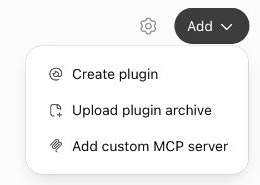
This creates a personal connection to Pocat. The official OpenAI guide describes this route too.
2. Enter Pocat's server address
Use these values. You can leave the icon and description empty.
| Field | Value |
|---|---|
| Name | Pocat |
| Connection | Server URL |
| Server URL | https://api.pocatai.com/mcp |
| Authentication | OAuth |
Copy the full address, including /mcp:
https://api.pocatai.com/mcp
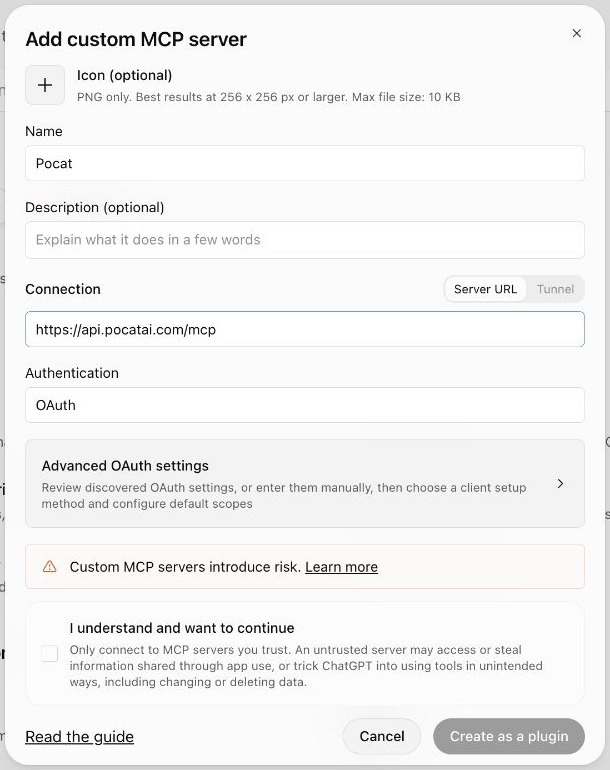
Choose OAuth so Pocat can save cards to the account you sign in with.
3. Check the OAuth client setup
Open Advanced OAuth settings and wait for discovery to finish. Check that Registration method is Client Identifier Metadata Document (CIMD). If it isn't selected automatically, choose CIMD from the list.
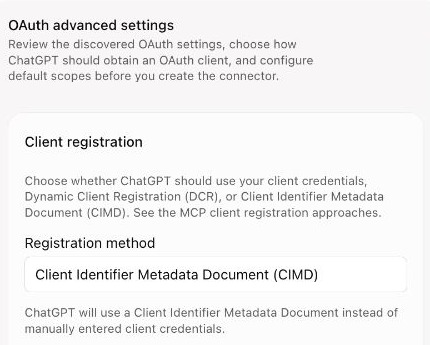
With CIMD, ChatGPT supplies its client information. You don't need to create or enter a Client ID or Client Secret. Keep the callback URL, CIMD URL, and other discovered settings as they are.
Read the custom server notice. To connect, select I understand and want to continue, then click Create as a plugin. When the Pocat sign-in and authorization screen opens, sign in with your existing Pocat account and review the requested permissions. Enter your password only on the Pocat sign-in screen, never in a ChatGPT message.
4. Install and select your personal plugin
Find the connection under Personal on the Plugins page. Open Pocat and install it if an install button appears. If it's already installed, go to your conversation.
Type @ in the message box and select Pocat. The OpenAI quickstart also covers installation and selecting a plugin in a conversation.
5. Save what you learned
In a conversation with Pocat selected, ask for the cards you want:
Save the English conversation phrases we just learned for a trip to the US as 3 Pocat cards.
Each card should ask how to say something at an airport, hotel, or restaurant and include the English answer.
Add a short example dialogue showing when to use the phrase, with a plain-language explanation of its meaning.
If ChatGPT asks for permission to run a tool, review what it will save before allowing it. Once it reports a successful save, look for the new batch in your Pocat library. You can also see it on iPhone when signed in to the same Pocat account.
Choose a batch to read and learn with quizzes, then review it at intervals. With free access, AI-saved batches may be locked. Choose an available batch to unlock before learning it.
Specify the parts you want to learn rather than saving an entire conversation. See the Privacy Policy for data handling and retention.
If the connection doesn't work
I can't find Add custom MCP server
Check your ChatGPT account and workspace. An administrator may have restricted connections, or the feature may be unavailable for your account. Ask your administrator or contact Pocat.
CIMD is unavailable or creation fails
Check that the address is https://api.pocatai.com/mcp and wait for OAuth discovery to finish. If it still fails, send us the error message. Don't enter arbitrary client credentials or send passwords, verification codes, or tokens.
Pocat doesn't appear in my conversation
Check that you've installed the personal plugin, then select @Pocat in the message box. Your workspace permissions may also affect whether it appears.
ChatGPT says it saved cards, but I can't find them
First check that ChatGPT ran a Pocat tool and received a successful result. Then check that you used the same account and sign-in method for the connection and the Pocat app. Refresh your library. Connecting doesn't automatically save past conversations.
References and screenshot scope
The screenshots show the Add menu, server setup, and OAuth/CIMD discovery. We didn't create a new connection, complete sign-in, or save cards while capturing them. The later steps follow the official documentation and Pocat's connection settings.