Updated: 2026-10-12
Connect Pocat to Claude and save cards
Save what you learn in Claude as Pocat cards. You can choose what to learn later and review it at intervals. While Pocat prepares its public connector listing, connect it by entering the server address in a custom connector.
This guide covers remote MCP connections on Claude's website. First, sign in to Pocat and check which account you'll use.
1. Open Customize → Connectors
Open Claude's Connectors page, then choose + Add → Add custom connector.

Free accounts can use remote custom connectors, with a limit of one. If Add is disabled, check your existing connections and plan limits. The screenshot alone doesn't establish why the button was disabled. On Team and Enterprise plans, an authorized organization administrator adds the connector before members connect to it. See Claude's official setup guide.
2. Enter Pocat's address
When the form opens, enter:
| Field | Value |
|---|---|
| Name | Pocat |
| Remote MCP server URL | https://api.pocatai.com/mcp |
https://api.pocatai.com/mcp
Click Continue to review the authentication settings Claude detected. On the next settings screen, use:
| Setting | Pocat value |
|---|---|
| Authentication | OAuth / Sign in now |
| OAuth client | Use Claude’s published identity |
| Client ID / Client Secret | No manual entry |
| Request headers | Leave empty |
Pocat uses Claude's published client identity (CIMD). You don't need your own OAuth client or automatic registration. Finish with Add. The form order and option names follow Claude's official guide.
3. Sign in with the same Pocat account
Use the same Pocat account you use on the web or iPhone. Review the requested permissions, finish connecting, then return to Yours in Claude. If a sign-in prompt remains, click Connect on the Pocat entry.
4. Enable Pocat in your conversation
Open + → Connectors on the left of the message box and enable Pocat. You can turn connectors on or off for each conversation. See Claude's connector usage guide.
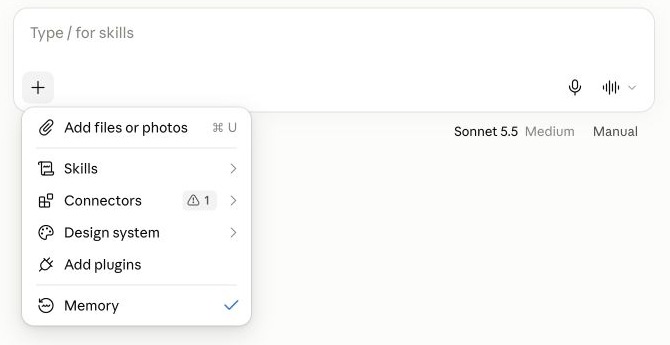
This capture shows where the menu is. We didn't complete the Pocat connection.
5. Save your first cards
Once connected, specify what you'd like to save:
Save the English conversation phrases we just learned for a trip to the US as 3 Pocat cards.
Each card should ask how to say something at an airport, hotel, or restaurant and include the English answer.
Add a short example dialogue showing when to use the phrase, with a plain-language explanation of its meaning.
If Claude asks to run a tool, review the cards it will save. Find them in Pocat on the web or in Inbox on iPhone. Choose the cards to learn; review follows after you finish learning them.
Specify only the parts needed for your cards. Keep passwords and verification codes out of save requests.
If the connection doesn't work
| Problem | What to check |
|---|---|
| Add is disabled | Check the Free custom connector limit, existing connections, and organization permissions. |
| The server can't be reached | Use exactly https://api.pocatai.com/mcp, rather than an old test address. |
| OAuth sign-in fails | Check Sign in now and Use Claude’s published identity. |
| Tools don't appear | Finish sign-in and enable Pocat under + → Connectors for this conversation. |
| Saved cards are missing | Check that Claude and the Pocat app are connected to the same Pocat account. |
If you're still stuck, contact Pocat with the error message and the step where it occurred. Don't send passwords or tokens.
Using ChatGPT too? See the ChatGPT setup guide.